CrewAI 追踪
CrewAI 内置追踪
Section titled “CrewAI 内置追踪”CrewAI 提供内置追踪能力,让你能够实时监控和调试你的 Crews 和 Flows。本指南演示如何使用 CrewAI 集成的可观测性平台为 Crews 和 Flows 启用追踪。
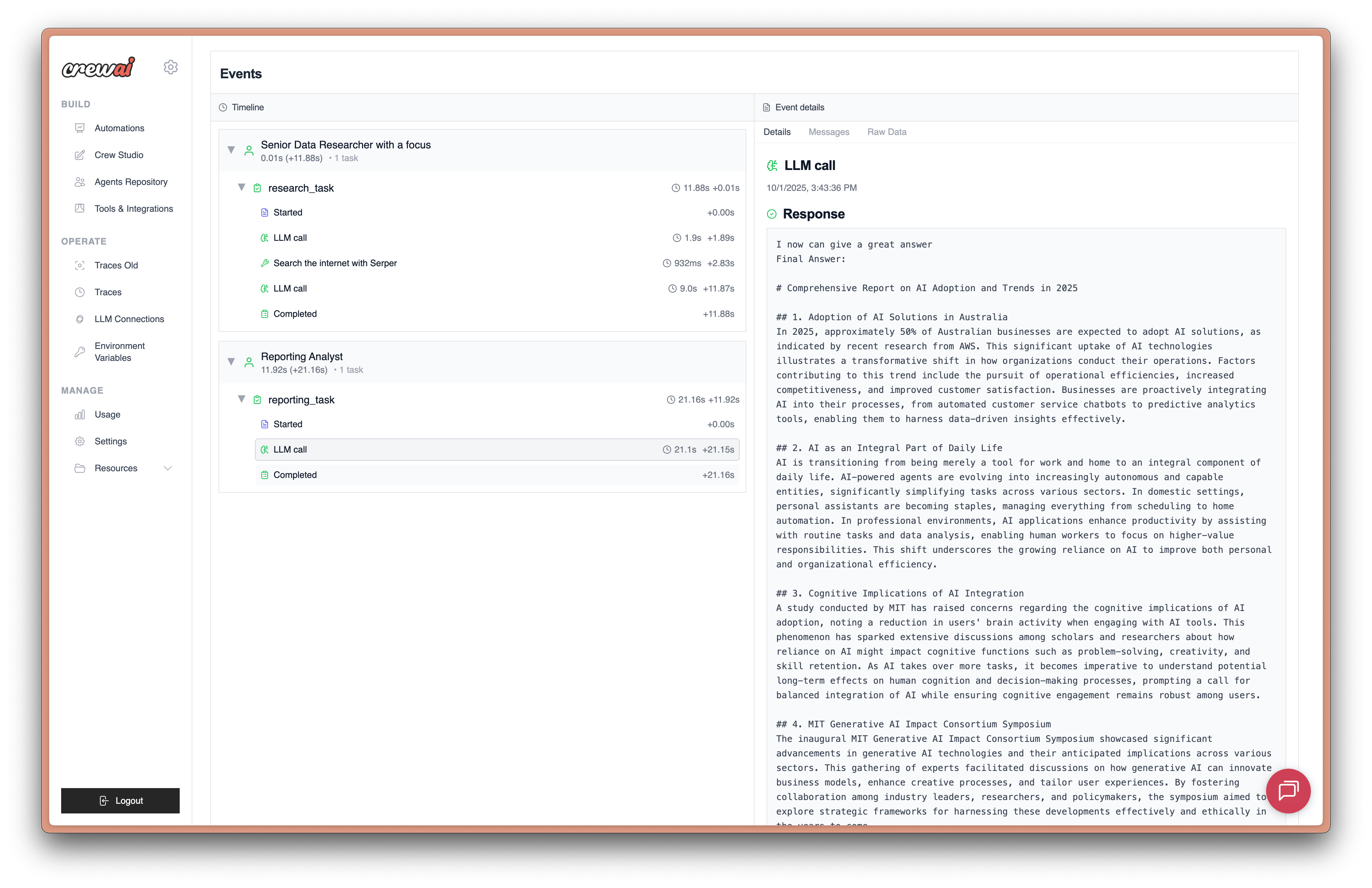
什么是 CrewAI 追踪? CrewAI 的内置追踪为你的 AI 代理提供全面可观测性,包括代理决策、任务执行时间线、工具使用情况和 LLM 调用,所有内容都可通过 CrewAI AMP 平台 访问。
在使用 CrewAI 追踪之前,你需要:
- CrewAI AMP 账户:在 app.crewai.com 注册免费账户
- CLI 身份验证:使用 CrewAI CLI 认证你的本地环境
crewai login步骤 1:创建你的 CrewAI AMP 账户
Section titled “步骤 1:创建你的 CrewAI AMP 账户”访问 app.crewai.com 并创建你的免费账户。这将让你能够访问 CrewAI AMP 平台,在那里查看追踪、指标并管理你的 crews。
步骤 2:安装 CrewAI CLI 并完成身份验证
Section titled “步骤 2:安装 CrewAI CLI 并完成身份验证”如果你还没有安装,请使用 CLI 工具安装 CrewAI:
uv add 'crewai[tools]'然后使用你的 CrewAI AMP 账户完成 CLI 认证:
crewai login该命令会:
- 打开浏览器进入认证页面
- 提示你输入设备代码
- 使用你的 CrewAI AMP 账户认证本地环境
- 为本地开发启用追踪能力
步骤 3:在你的 Crew 中启用追踪
Section titled “步骤 3:在你的 Crew 中启用追踪”你可以通过将 tracing 参数设置为 True 来为你的 Crew 启用追踪:
from crewai import Agent, Crew, Process, Taskfrom crewai_tools import SerperDevTool
# 定义你的代理researcher = Agent(    role="Senior Research Analyst",    goal="Uncover cutting-edge developments in AI and data science",    backstory="""You work at a leading tech think tank.    Your expertise lies in identifying emerging trends.    You have a knack for dissecting complex data and presenting actionable insights.""",    verbose=True,    tools=[SerperDevTool()],)
writer = Agent(    role="Tech Content Strategist",    goal="Craft compelling content on tech advancements",    backstory="""You are a renowned Content Strategist, known for your insightful and engaging articles.    You transform complex concepts into compelling narratives.""",    verbose=True,)
# 为你的代理创建任务research_task = Task(    description="""Conduct a comprehensive analysis of the latest advancements in AI in 2024.    Identify key trends, breakthrough technologies, and potential industry impacts.""",    expected_output="Full analysis report in bullet points",    agent=researcher,)
writing_task = Task(    description="""Using the insights provided, develop an engaging blog    post that highlights the most significant AI advancements.    Your post should be informative yet accessible, catering to a tech-savvy audience.""",    expected_output="Full blog post of at least 4 paragraphs",    agent=writer,)
# 在你的 crew 中启用追踪crew = Crew(    agents=[researcher, writer],    tasks=[research_task, writing_task],    process=Process.sequential,    tracing=True,  # 启用内置追踪    verbose=True)
# 执行你的 crewresult = crew.kickoff()
步骤 4:在你的 Flow 中启用追踪
Section titled “步骤 4:在你的 Flow 中启用追踪”同样地,你也可以为 CrewAI Flows 启用追踪:
from crewai.flow.flow import Flow, listen, startfrom pydantic import BaseModel
class ExampleState(BaseModel):    counter: int = 0    message: str = ""
class ExampleFlow(Flow[ExampleState]):    def __init__(self):        super().__init__(tracing=True)  # 为 flow 启用追踪
    @start()    def first_method(self):        print("Starting the flow")        self.state.counter = 1        self.state.message = "Flow started"        return "continue"
    @listen("continue")    def second_method(self):        print("Continuing the flow")        self.state.counter += 1        self.state.message = "Flow continued"        return "finish"
    @listen("finish")    def final_method(self):        print("Finishing the flow")        self.state.counter += 1        self.state.message = "Flow completed"
# 创建并运行启用追踪的 flowflow = ExampleFlow(tracing=True)result = flow.kickoff()
步骤 5:在 CrewAI AMP 仪表盘中查看追踪
Section titled “步骤 5:在 CrewAI AMP 仪表盘中查看追踪”运行 crew 或 flow 后,你可以在 CrewAI AMP 仪表盘中查看由 CrewAI 应用生成的追踪。你应该能看到代理交互、工具使用和 LLM 调用的详细步骤。
只需点击下方链接查看追踪,或前往仪表盘中的 traces 标签页 here

其他方式:环境变量配置
Section titled “其他方式:环境变量配置”你还可以通过设置环境变量来全局启用追踪:
export CREWAI_TRACING_ENABLED=true或者将其添加到你的 .env 文件中:
CREWAI_TRACING_ENABLED=true当设置了这个环境变量后,所有 Crews 和 Flows 都会自动启用追踪,即使你没有显式设置 tracing=True。
查看你的追踪
Section titled “查看你的追踪”访问 CrewAI AMP 仪表盘
Section titled “访问 CrewAI AMP 仪表盘”- 访问 app.crewai.com 并登录你的账户
- 导航到你的项目仪表盘
- 点击 Traces 标签查看执行详情
在追踪中你会看到什么
Section titled “在追踪中你会看到什么”CrewAI 追踪为你提供以下方面的全面可视性:
- 代理决策:查看代理如何推理任务并做出决策
- 任务执行时间线:任务序列和依赖关系的可视化表示
- 工具使用:监控调用了哪些工具及其结果
- LLM 调用:跟踪所有语言模型交互,包括提示词和响应
- 性能指标:执行时间、token 使用量和成本
- 错误跟踪:详细的错误信息和堆栈追踪
- 执行时间线:点击查看执行的不同阶段
- 详细日志:访问全面日志以便调试
- 性能分析:分析执行模式并优化性能
- 导出能力:下载追踪以进行进一步分析
身份验证问题
Section titled “身份验证问题”如果你遇到身份验证问题:
- 确保你已登录:
crewai login - 检查你的网络连接
- 验证你在 app.crewai.com 的账户
如果追踪没有显示在仪表盘中:
- 确认在你的 Crew/Flow 中设置了
tracing=True - 如果使用环境变量,检查
CREWAI_TRACING_ENABLED=true - 确保你已使用
crewai login完成身份验证 - 验证你的 crew/flow 确实正在执行