Databricks Integration
Overview
Section titled “Overview”Connect your CrewAI agents directly to your Databricks workspace through Databricks managed MCP servers. The Databricks integration lets your agents ask natural-language questions with Genie, run governed SQL, call Unity Catalog Functions, and retrieve documents with Vector Search — all without writing or hosting any connector code, and with Unity Catalog permissions enforced on every call.
Under the hood, the Databricks integration is a managed wrapper around CrewAI’s Custom MCP Server support. Databricks exposes each capability as its own Model Context Protocol endpoint, and CrewAI connects to them securely on your behalf. Because each server is added separately, you can enable exactly the capabilities your crews need.
Key Capabilities
Section titled “Key Capabilities”Genie
Ask questions in plain language and get grounded answers from your data with Genie, which queries Genie Spaces and Unity Catalog and links back to the Databricks UI.
Databricks SQL
Run governed SQL against your Databricks warehouses to query, transform, and author data pipelines directly from your agents.
Unity Catalog Functions
Invoke Unity Catalog functions to run predefined SQL and custom business logic as governed, reusable tools.
Vector Search
Retrieve relevant documents for RAG and knowledge workflows from Mosaic AI Vector Search indexes using semantic similarity.
Every server runs behind the Unity AI Gateway and enforces Unity Catalog access controls, so your agents only ever see the data and tools they’re permitted to use.
Prerequisites
Section titled “Prerequisites”Before using the Databricks integration, ensure you have:
- A CrewAI AMP account with an active subscription
- A Databricks workspace with the capabilities you want to expose (Genie Spaces, SQL warehouses, Unity Catalog functions, or Vector Search indexes)
- Appropriate Unity Catalog privileges on the underlying objects
- Your Databricks workspace hostname (e.g.
your-workspace.cloud.databricks.com)
Databricks Managed MCP Servers
Section titled “Databricks Managed MCP Servers”Databricks publishes a separate managed MCP server for each capability. CrewAI exposes these as individual connections, each configured with your workspace host and the relevant Unity Catalog identifiers. The endpoints follow these patterns:
| Server | What it does | MCP URL pattern |
|---|---|---|
| Genie | Natural-language Q&A over a Genie Space | https://<workspace-hostname>/api/2.0/mcp/genie/{genie_space_id} |
| Databricks SQL | Execute SQL against your warehouses | https://<workspace-hostname>/api/2.0/mcp/sql |
| Unity Catalog Functions | Run registered UC functions | https://<workspace-hostname>/api/2.0/mcp/functions/{catalog}/{schema} |
| Vector Search | Query a Vector Search index | https://<workspace-hostname>/api/2.0/mcp/vector-search/{catalog}/{schema} |
Connecting Databricks in CrewAI AMP
Section titled “Connecting Databricks in CrewAI AMP”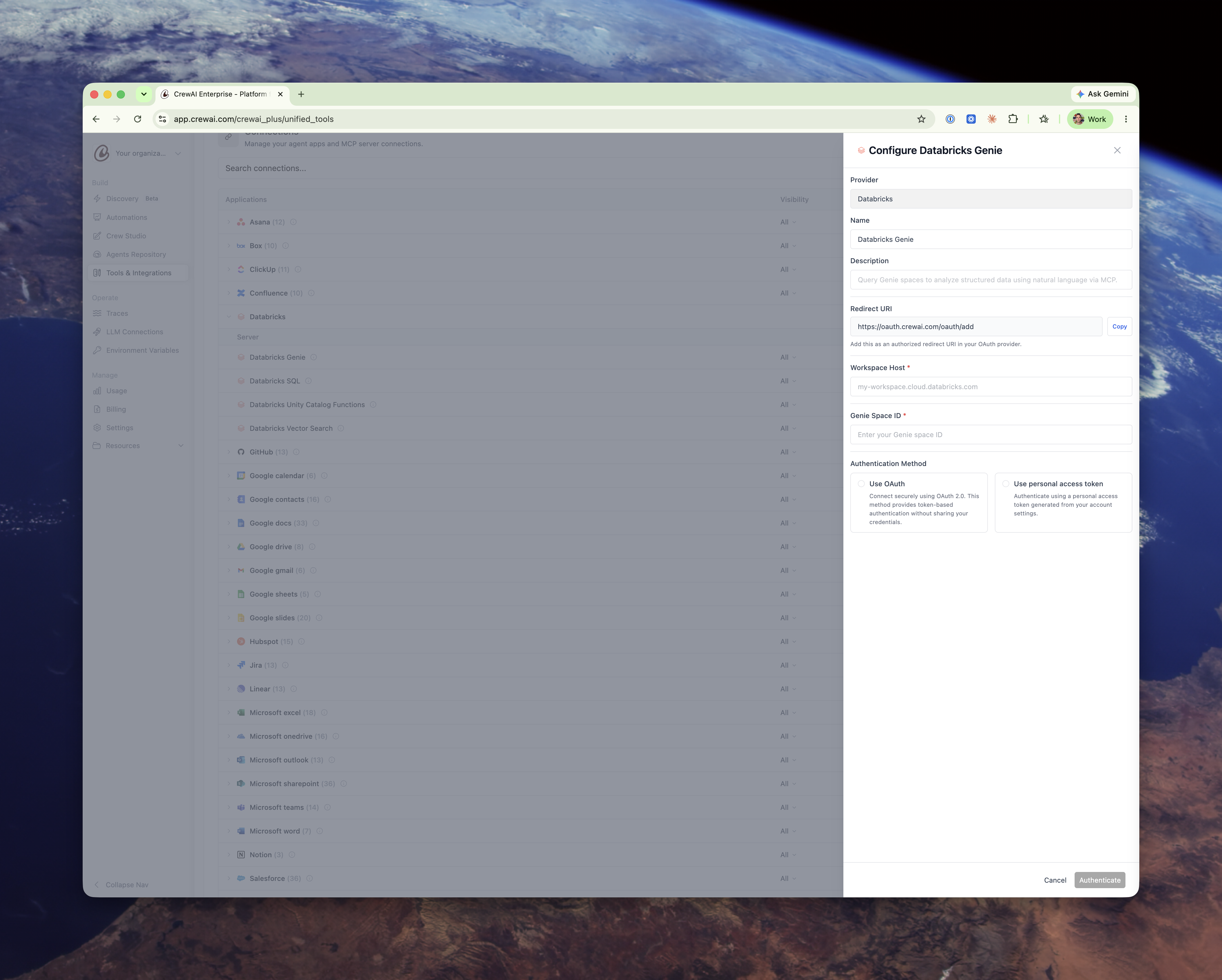
Each Databricks capability — Databricks Genie, Databricks SQL, Databricks Unity Catalog Functions, and Databricks Vector Search — appears as its own MCP server under the Databricks group on the Tools & Integrations page. Configure the ones you need:
- Open Tools & Integrations
Navigate to Tools & Integrations in the left sidebar of CrewAI AMP and locate the Databricks group in the Connections list. You’ll see the Genie, SQL, Unity Catalog Functions, and Vector Search servers listed beneath it.
- Configure a server
Click Configure next to the capability you want to enable and provide its connection details:
- Workspace Host — your Databricks workspace hostname (e.g.
my-workspace.cloud.databricks.com). - Genie — the Genie Space ID to query.
- Unity Catalog Functions — the catalog and schema that contain your functions.
- Vector Search — the catalog and schema that contain your index.
- Databricks SQL — no additional identifiers; queries run against your workspace’s SQL warehouses.
- Workspace Host — your Databricks workspace hostname (e.g.
- Choose an authentication method
Select how CrewAI authenticates to Databricks. OAuth is recommended.
- Use OAuth — Connect securely using OAuth 2.0. Each user authenticates individually, and Databricks issues tokens scoped to the capability (
genie,sql,unity-catalog, orvector-search). CrewAI handles the authorization flow and refreshes tokens automatically. - Use personal access token — Authenticate with a Databricks personal access token. Use a least-privileged identity to limit exposure.
- Use OAuth — Connect securely using OAuth 2.0. Each user authenticates individually, and Databricks issues tokens scoped to the capability (
- Authenticate
Complete authentication. Once connected, the server’s tools become available to your crews. Repeat for any other Databricks capabilities you want to enable.
Using Databricks Tools in Your Crews
Section titled “Using Databricks Tools in Your Crews”Once connected, the tools each MCP server exposes appear alongside built-in connections on the Tools & Integrations page. You can:
- Assign tools to agents in your crews just like any other CrewAI tool.
- Manage visibility to control which team members can use each connection.
- Edit or remove any connection at any time from the Connections list.
Your agents can now ask Genie for grounded answers, run SQL against your warehouses, call Unity Catalog functions, and search Vector Search indexes — with results flowing back into their reasoning automatically.
Learn More
Section titled “Learn More”Databricks Managed MCP Servers
Official Databricks documentation for the managed Genie, SQL, Unity Catalog Functions, and Vector Search MCP servers.
Custom MCP Servers in CrewAI
Learn how CrewAI connects to any MCP server, the foundation the Databricks integration builds on.
Need Help?
Contact our support team for assistance with the Databricks integration or troubleshooting.