OneDrive Trigger
Overview
Section titled “Overview”Start automations when files change inside OneDrive. You can generate audit summaries, notify security teams about external sharing, or update downstream line-of-business systems with new document metadata.
Enabling the OneDrive Trigger
Section titled “Enabling the OneDrive Trigger”- Open your deployment in CrewAI AMP
- Go to the Triggers tab
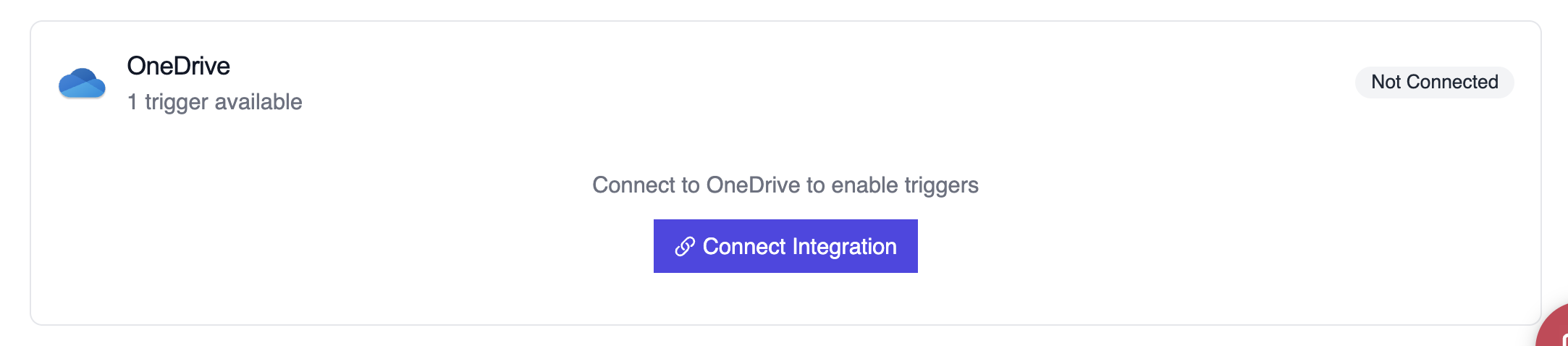
- Locate OneDrive and switch the toggle to enable
Example: Audit file permissions
Section titled “Example: Audit file permissions”from onedrive_file_crew import OneDriveFileTrigger
crew = OneDriveFileTrigger().crew()crew.kickoff({ "crewai_trigger_payload": onedrive_payload,})The crew inspects file metadata, user activity, and permission changes to produce a compliance-friendly summary.
Testing Locally
Section titled “Testing Locally”Test your OneDrive trigger integration locally using the CrewAI CLI:
# View all available triggerscrewai triggers list
# Simulate a OneDrive trigger with realistic payloadcrewai triggers run microsoft_onedrive/file_changed
The crewai triggers run command will execute your crew with a complete OneDrive payload, allowing you to test your parsing logic before deployment.
Troubleshooting
Section titled “Troubleshooting”- Ensure the connected account has permission to read the file metadata included in the webhook
- Test locally with
crewai triggers run microsoft_onedrive/file_changedto see the exact payload structure - If the trigger fires but the payload is missing
permissions, confirm the site-level sharing settings allow Graph to return this field - For large tenants, filter notifications upstream so the crew only runs on relevant directories
- Remember: use
crewai triggers run(notcrewai run) to simulate trigger execution