Microsoft Teams Trigger
Overview
Section titled “Overview”Use the Microsoft Teams trigger to start automations whenever a new chat is created. Common patterns include summarizing inbound requests, routing urgent messages to support teams, or creating follow-up tasks in other systems.
Enabling the Microsoft Teams Trigger
Section titled “Enabling the Microsoft Teams Trigger”- Open your deployment in CrewAI AMP
- Go to the Triggers tab
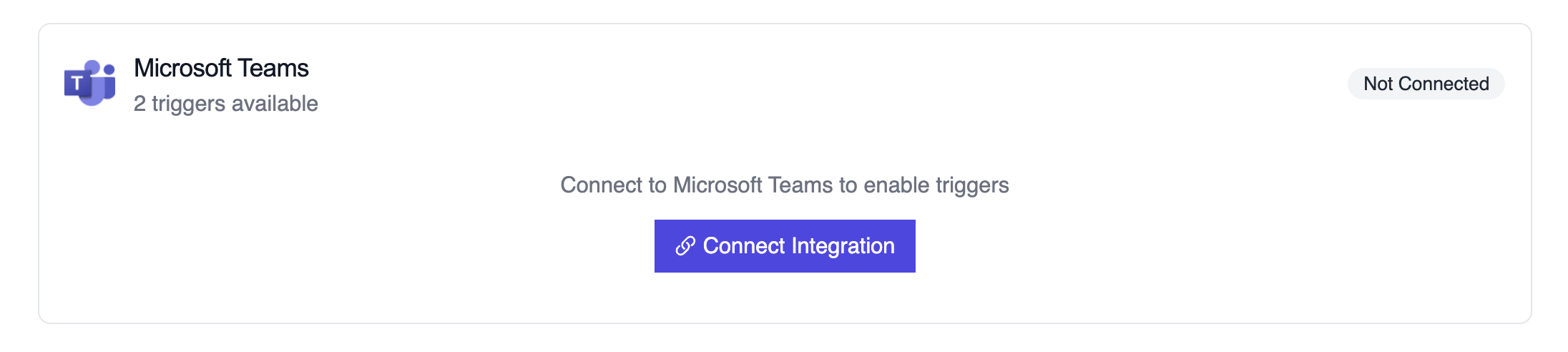
- Locate Microsoft Teams and switch the toggle to enable
Example: Summarize a new chat thread
Section titled “Example: Summarize a new chat thread”from teams_chat_created_crew import MicrosoftTeamsChatTrigger
crew = MicrosoftTeamsChatTrigger().crew()result = crew.kickoff({ "crewai_trigger_payload": teams_payload,})print(result.raw)The crew parses thread metadata (subject, created time, roster) and generates an action plan for the receiving team.
Testing Locally
Section titled “Testing Locally”Test your Microsoft Teams trigger integration locally using the CrewAI CLI:
# View all available triggerscrewai triggers list
# Simulate a Microsoft Teams trigger with realistic payloadcrewai triggers run microsoft_teams/teams_message_created
The crewai triggers run command will execute your crew with a complete Teams payload, allowing you to test your parsing logic before deployment.
Troubleshooting
Section titled “Troubleshooting”- Ensure the Teams connection is active; it must be refreshed if the tenant revokes permissions
- Test locally with
crewai triggers run microsoft_teams/teams_message_createdto see the exact payload structure - Confirm the webhook subscription in Microsoft 365 is still valid if payloads stop arriving
- Review execution logs for payload shape mismatches—Graph notifications may omit fields when a chat is private or restricted
- Remember: use
crewai triggers run(notcrewai run) to simulate trigger execution