Triggers Overview
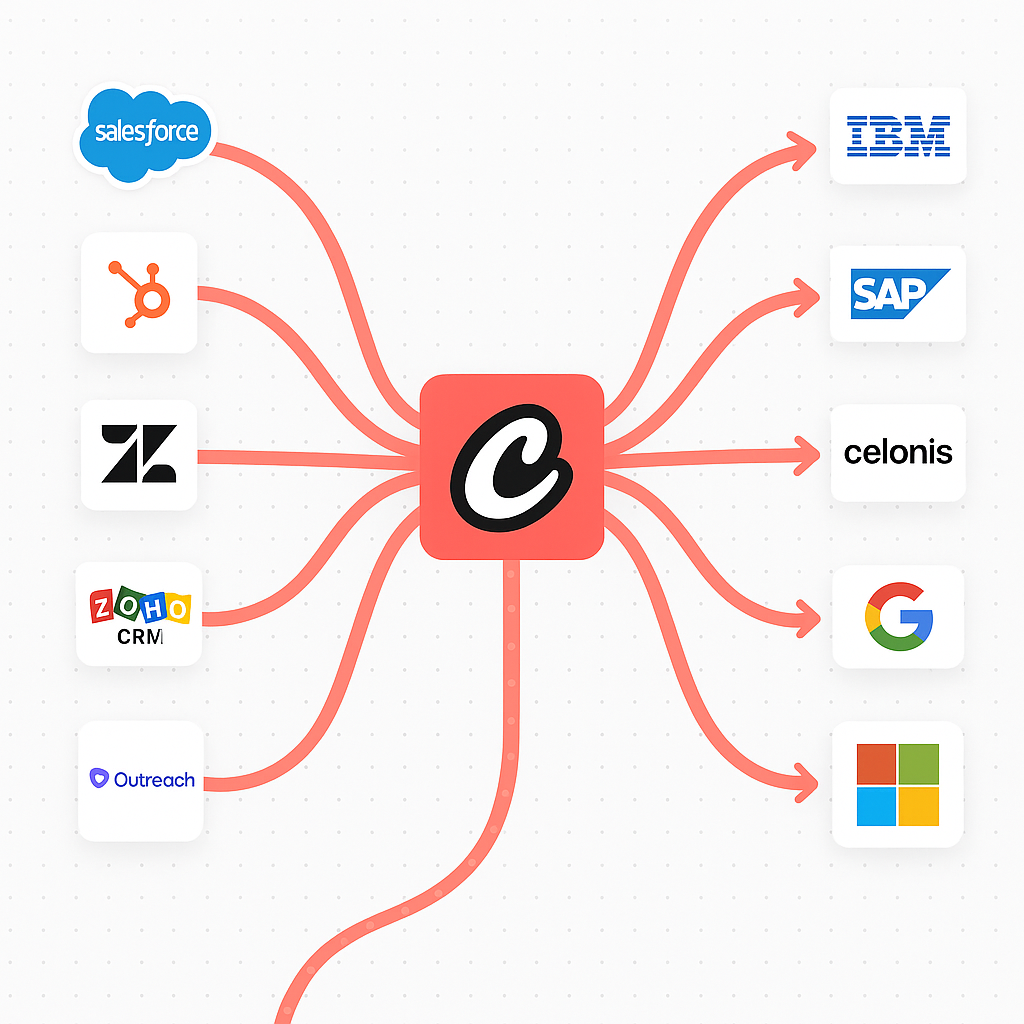
CrewAI AMP triggers connect your automations to real-time events across the tools your teams already use. Instead of polling systems or relying on manual kickoffs, triggers listen for changes—new emails, calendar updates, CRM status changes—and immediately launch the crew or flow you specify.
Integration Playbooks
Section titled “Integration Playbooks”Deep-dive guides walk through setup and sample workflows for each integration:
Gmail Trigger
Google Calendar Trigger
Google Drive Trigger
OneDrive Trigger
Microsoft Teams Trigger
Salesforce Trigger
Slack Trigger
Zapier Trigger
Trigger Capabilities
Section titled “Trigger Capabilities”With triggers, you can:
- Respond to real-time events - Automatically execute workflows when specific conditions are met
- Integrate with external systems - Connect with platforms like Gmail, Outlook, OneDrive, JIRA, Slack, Stripe and more
- Scale your automation - Handle high-volume events without manual intervention
- Maintain context - Access trigger data within your crews and flows
Managing Triggers
Section titled “Managing Triggers”Viewing Available Triggers
Section titled “Viewing Available Triggers”To access and manage your automation triggers:
- Navigate to your deployment in the CrewAI dashboard
- Click on the Triggers tab to view all available trigger integrations
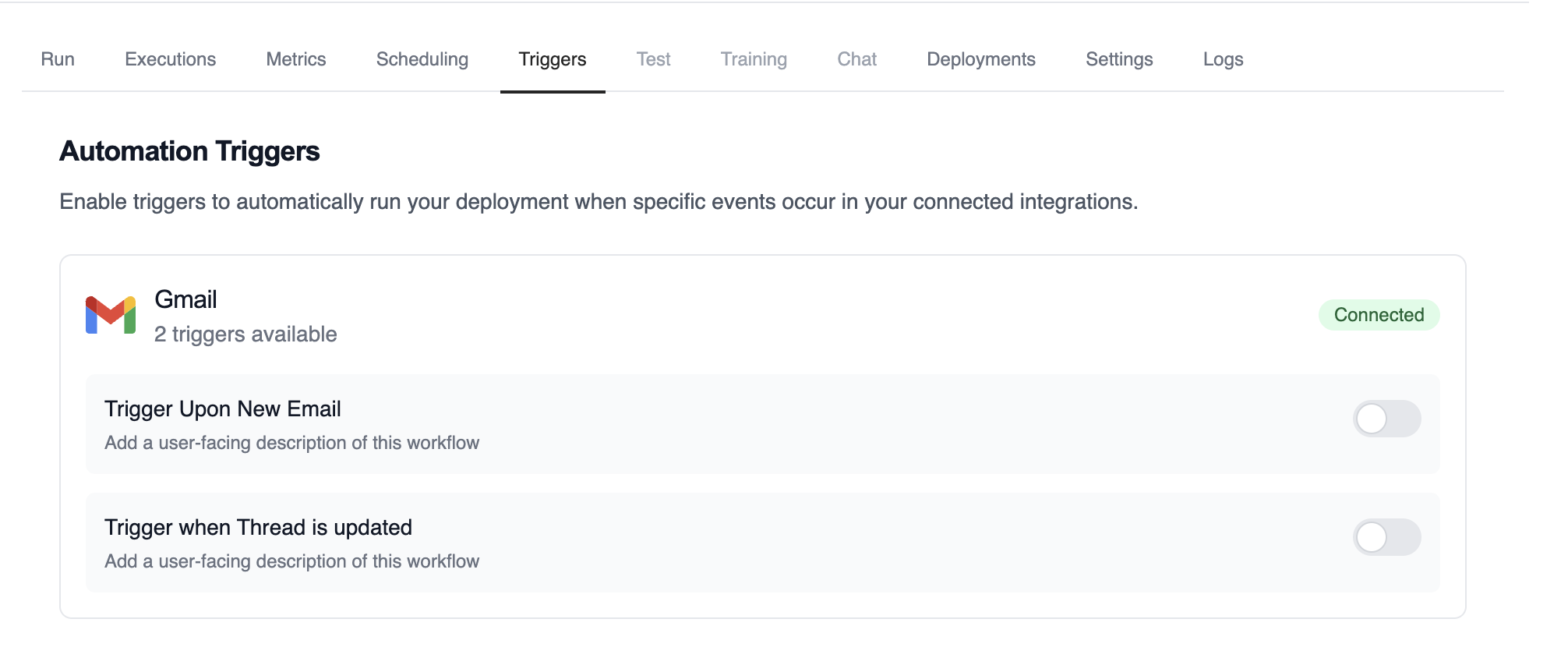
This view shows all the trigger integrations available for your deployment, along with their current connection status.
Enabling and Disabling Triggers
Section titled “Enabling and Disabling Triggers”Each trigger can be easily enabled or disabled using the toggle switch:
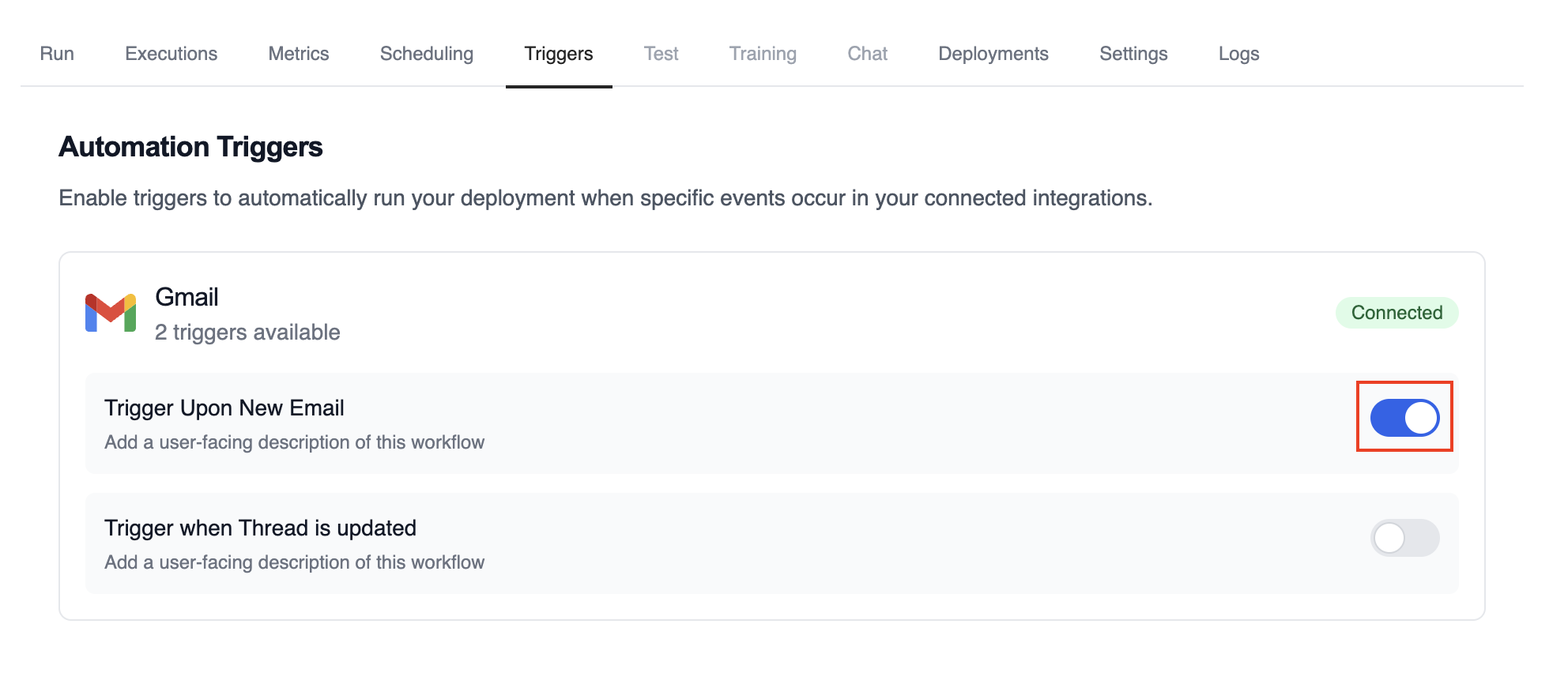
- Enabled (blue toggle): The trigger is active and will automatically execute your deployment when the specified events occur
- Disabled (gray toggle): The trigger is inactive and will not respond to events
Simply click the toggle to change the trigger state. Changes take effect immediately.
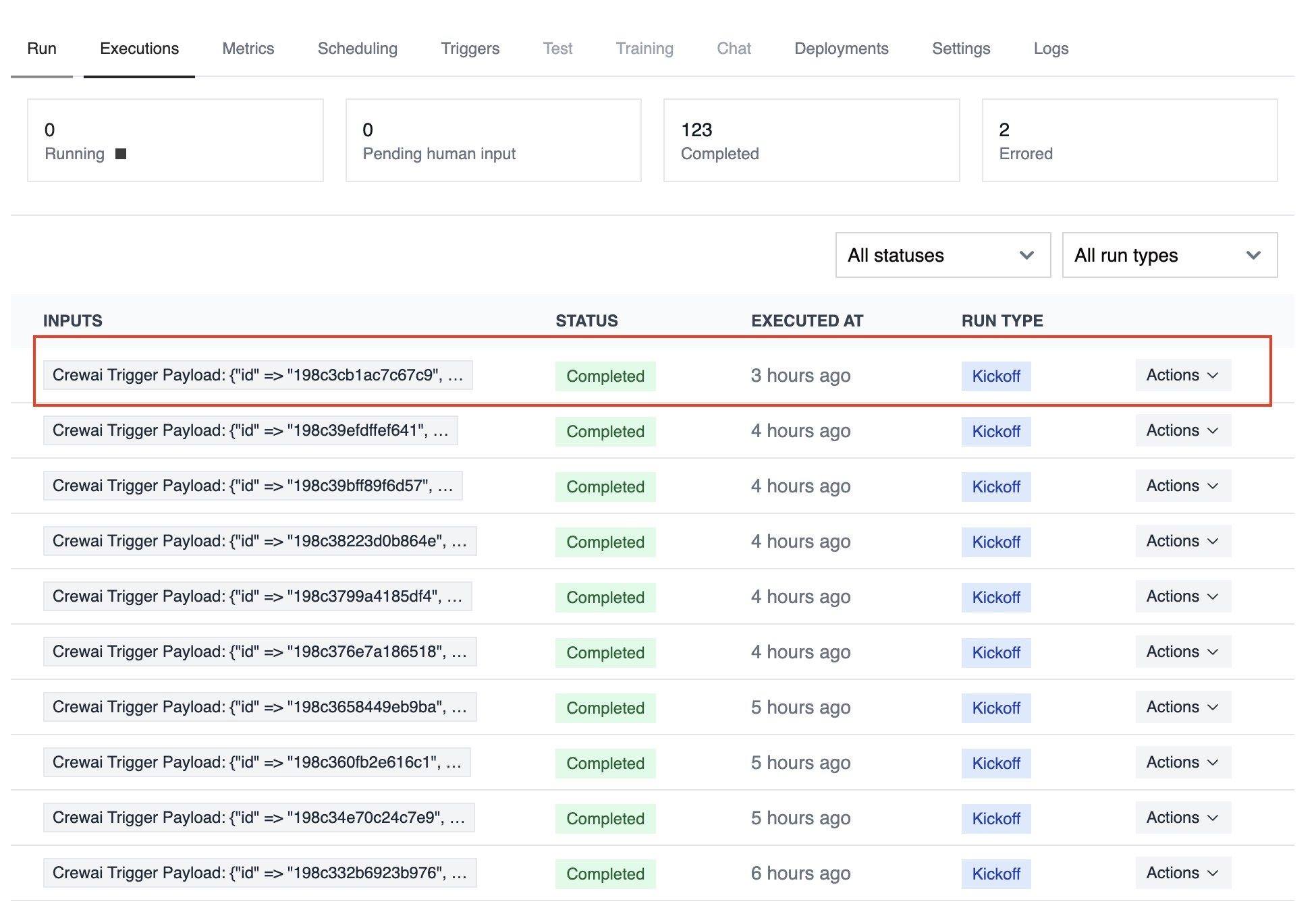
Monitoring Trigger Executions
Section titled “Monitoring Trigger Executions”Track the performance and history of your triggered executions:
Building Trigger-Driven Automations
Section titled “Building Trigger-Driven Automations”Before building your automation, it’s helpful to understand the structure of trigger payloads that your crews and flows will receive.
Trigger Setup Checklist
Section titled “Trigger Setup Checklist”Before wiring a trigger into production, make sure you:
- Connect the integration under Tools & Integrations and complete any OAuth or API key steps
- Enable the trigger toggle on the deployment that should respond to events
- Provide any required environment variables (API tokens, tenant IDs, shared secrets)
- Create or update tasks that can parse the incoming payload within the first crew task or flow step
- Decide whether to pass trigger context automatically using
allow_crewai_trigger_context - Set up monitoring—webhook logs, CrewAI execution history, and optional external alerting
Testing Triggers Locally with CLI
Section titled “Testing Triggers Locally with CLI”The CrewAI CLI provides powerful commands to help you develop and test trigger-driven automations without deploying to production.
List Available Triggers
Section titled “List Available Triggers”View all available triggers for your connected integrations:
crewai triggers listThis command displays all triggers available based on your connected integrations, showing:
- Integration name and connection status
- Available trigger types
- Trigger names and descriptions
Simulate Trigger Execution
Section titled “Simulate Trigger Execution”Test your crew with realistic trigger payloads before deployment:
crewai triggers run <trigger_name>For example:
crewai triggers run microsoft_onedrive/file_changedThis command:
- Executes your crew locally
- Passes a complete, realistic trigger payload
- Simulates exactly how your crew will be called in production
Triggers with Crew
Section titled “Triggers with Crew”Your existing crew definitions work seamlessly with triggers, you just need to have a task to parse the received payload:
@CrewBaseclass MyAutomatedCrew:    @agent    def researcher(self) -> Agent:        return Agent(            config=self.agents_config['researcher'],        )
    @task    def parse_trigger_payload(self) -> Task:        return Task(            config=self.tasks_config['parse_trigger_payload'],            agent=self.researcher(),        )
    @task    def analyze_trigger_content(self) -> Task:        return Task(            config=self.tasks_config['analyze_trigger_data'],            agent=self.researcher(),        )
The crew will automatically receive and can access the trigger payload through the standard CrewAI context mechanisms.
Integration with Flows
Section titled “Integration with Flows”For flows, you have more control over how trigger data is handled:
Accessing Trigger Payload
Section titled “Accessing Trigger Payload”All @start() methods in your flows will accept an additional parameter called crewai_trigger_payload:
from crewai.flow import Flow, start, listen
class MyAutomatedFlow(Flow):    @start()    def handle_trigger(self, crewai_trigger_payload: dict = None):        """        This start method can receive trigger data        """        if crewai_trigger_payload:            # Process the trigger data            trigger_id = crewai_trigger_payload.get('id')            event_data = crewai_trigger_payload.get('payload', {})
            # Store in flow state for use by other methods            self.state.trigger_id = trigger_id            self.state.trigger_type = event_data
            return event_data
        # Handle manual execution        return None
    @listen(handle_trigger)    def process_data(self, trigger_data):        """        Process the data from the trigger        """        # ... process the trigger
Triggering Crews from Flows
Section titled “Triggering Crews from Flows”When kicking off a crew within a flow that was triggered, pass the trigger payload as it:
@start()def delegate_to_crew(self, crewai_trigger_payload: dict = None):    """    Delegate processing to a specialized crew    """    crew = MySpecializedCrew()
    # Pass the trigger payload to the crew    result = crew.crew().kickoff(        inputs={            'a_custom_parameter': "custom_value",            'crewai_trigger_payload': crewai_trigger_payload        },    )
    return result
Troubleshooting
Section titled “Troubleshooting”Trigger not firing:
- Verify the trigger is enabled in your deployment’s Triggers tab
- Check integration connection status under Tools & Integrations
- Ensure all required environment variables are properly configured
Execution failures:
- Check the execution logs for error details
- Use
crewai triggers run <trigger_name>to test locally and see the exact payload structure - Verify your crew can handle the
crewai_trigger_payloadparameter - Ensure your crew doesn’t expect parameters that aren’t included in the trigger payload
Development issues:
- Always test with
crewai triggers run <trigger>before deploying to see the complete payload - Remember that
crewai rundoes NOT simulate trigger calls—usecrewai triggers runinstead - Use
crewai triggers listto verify which triggers are available for your connected integrations - After deployment, your crew will receive the actual trigger payload, so test thoroughly locally first
Automation triggers transform your CrewAI deployments into responsive, event-driven systems that can seamlessly integrate with your existing business processes and tools.