Set up the Rules
Overview
Section titled “Overview”Rules let you apply policies — today: PII Redaction — across many automations at once, instead of configuring each deployment individually. Open the Rules tab in the Agent Control Plane to manage them.
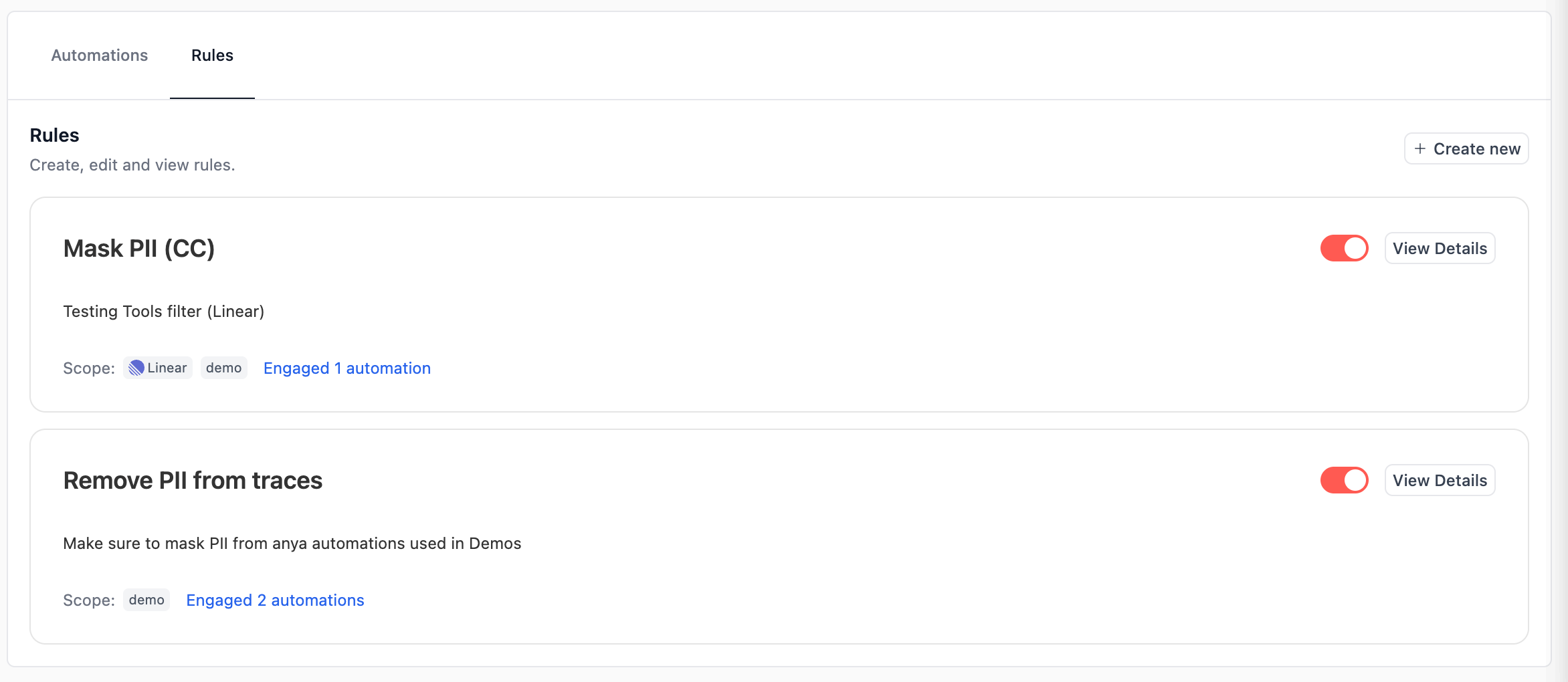
Each rule card shows the name, description, the scope the rule applies to (selected tools and tags), and a count of engaged automations — deployments that currently match the scope. The toggle on the right enables or disables the rule without deleting it.
Requirements
Section titled “Requirements”- The Agent Control Plane feature must be enabled for your organization. See Overview — Requirements.
- The
manageRBAC permission on Agent Control Plane is required to create, edit, toggle, or delete rules. Thereadpermission is enough to view them. - All rule changes are versioned for auditing.
Available rule types
Section titled “Available rule types”| Type | What it does |
|---|---|
| PII Redaction | Applies PII redaction to executions of every matching automation, using the same entity catalog and custom recognizers documented in PII Redaction for Traces. |
More rule types will be added over time.
Creating a rule
Section titled “Creating a rule”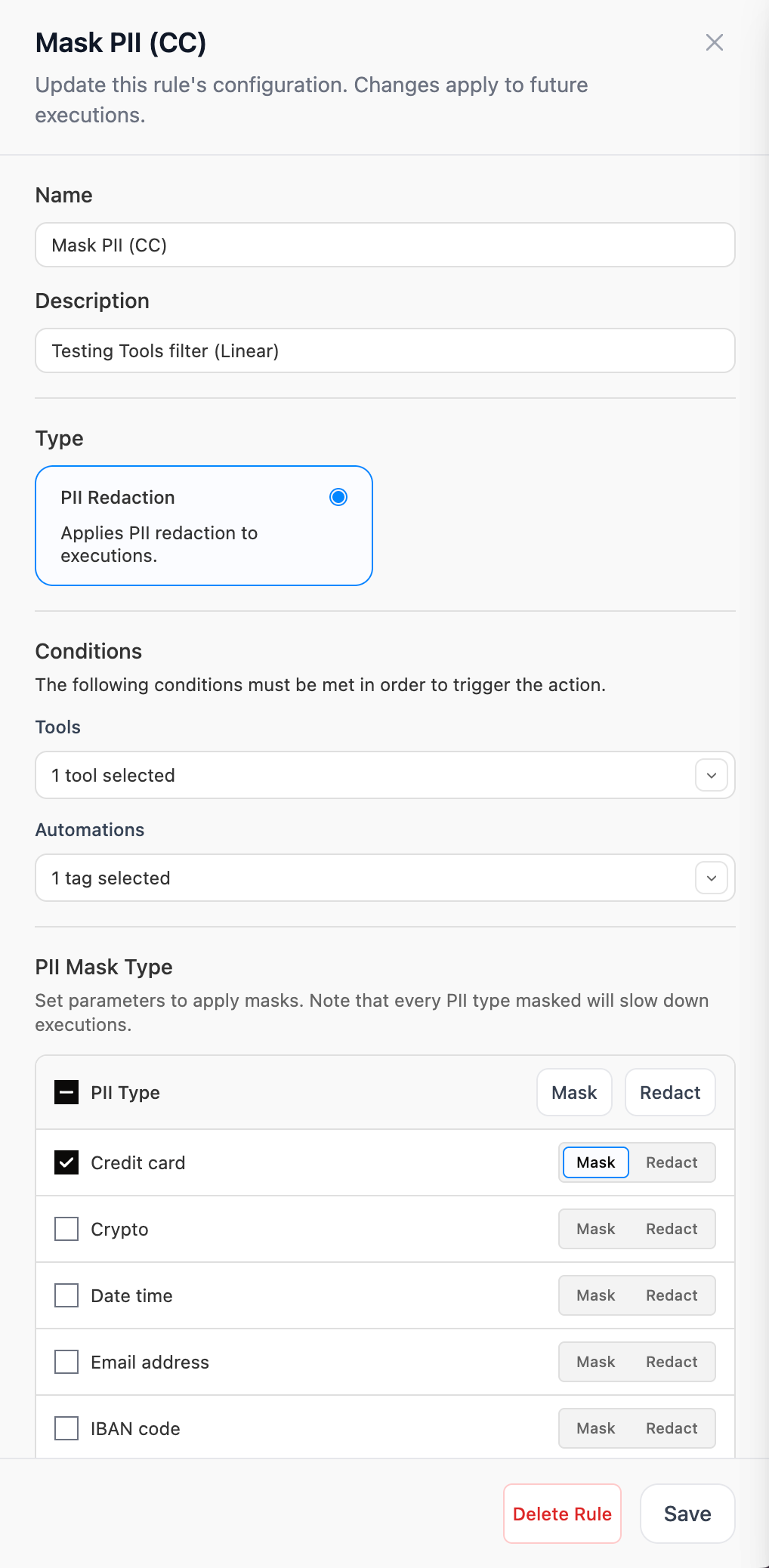
- Open the editor
Click + Create new at the top-right of the Rules tab, or View Details on an existing rule card.
- Name and describe the rule
Give the rule a clear name (e.g. Mask PII (CC)) and a description explaining when it applies. Both show up on the rule card and in the Engaged Automations modal.
- Pick the type
Today only PII Redaction is available.
- Set the conditions
Conditions decide which automations the rule engages with. Both are optional and use set-equality semantics:
- Tools — only automations whose tool set exactly matches the selected tools will engage. Picks from Studio apps, MCPs, OSS tools, and Tool Repository registry tools.
- Automations — only automations whose tag set exactly matches the selected tags will engage.
Leaving a picker empty means “no filter on this dimension”. Leaving both empty means the rule applies to every automation in the organization.
- Configure the PII Mask Type table
Check each entity type you want covered and choose Mask (replaces with the entity label, e.g.
<CREDIT_CARD>) or Redact (removes the matched text entirely). See PII Redaction for Traces for the full entity catalog and how to add organization-level custom recognizers. - Save
The rule applies to future executions of every engaged automation as soon as you save. No re-deploy is needed.
Engaged automations
Section titled “Engaged automations”Click Engaged N automations on any rule card to see exactly which deployments the rule is currently matching, along with each one’s last execution.
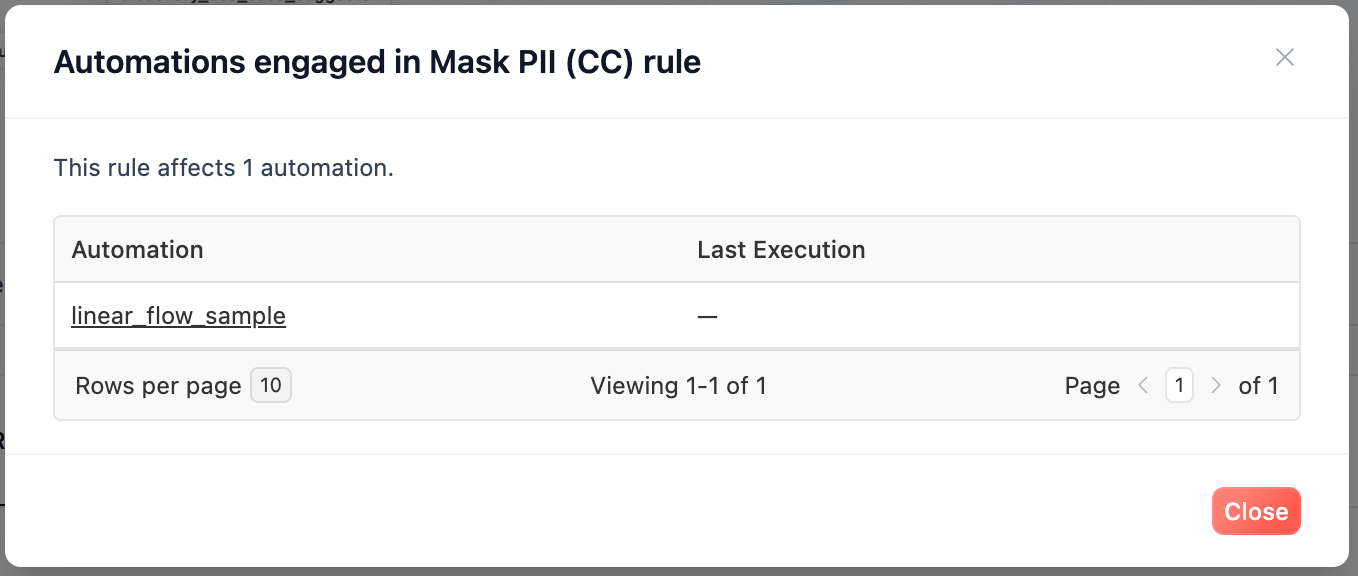
This is the fastest way to sanity-check a rule’s scope before enabling it — for example, to confirm that a rule scoped to the production tag isn’t accidentally matching a staging deployment.
Org-wide rules vs per-deployment settings
Section titled “Org-wide rules vs per-deployment settings”PII Redaction can be configured in two places:
- Per-deployment — under Settings → PII Protection on each individual deployment (guide)
- Org-wide — as a Rule on this page
When an enabled org-wide rule’s scope matches a deployment, the rule’s entity configuration overrides the deployment-owned PII settings for that deployment’s executions — the rule becomes the single source of truth while it’s attached. Disable or detach the rule (or change its scope so it no longer matches) and the deployment falls back to its own PII Protection settings.
Prefer org-wide rules when you want to enforce a consistent policy across many deployments; reserve per-deployment configuration for one-off exceptions.
Related
Section titled “Related”Agent Control Plane — Overview
What ACP is, requirements, plan tiers, and RBAC.
Agent Control Plane — Monitoring
Monitor automations and LLM consumption across your fleet.
PII Redaction for Traces
Entity catalog, custom recognizers, and per-deployment configuration.
RBAC
Manage who can create or edit rules.
Need Help?
Contact our support team for help designing rules for your organization.